
Secure wireless SSID WiFi QR codes creation handbook
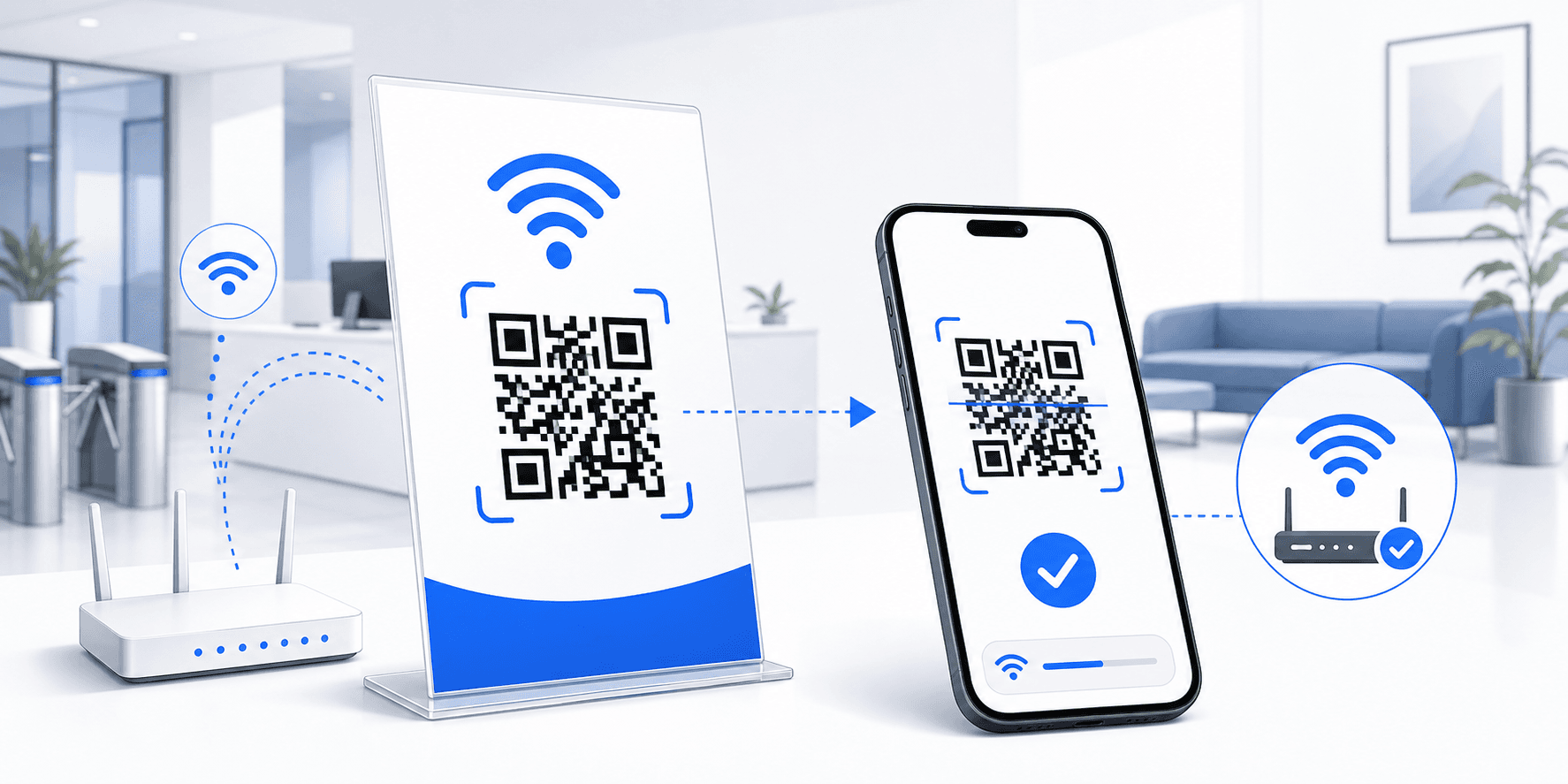
Typing complex wifi key combinations manually is a common minor friction point for customers, lobby visitors, and office staff. Converting network credentials into a scannable WiFi QR code resolves this issue instantly. Here is the step-by-step setup guide:
1. Format the standard WiFi SSID Schema
Android and iOS cameras scan special WIFI string codes based on direct protocols: WIFI:T:WPA;S:Network_SSID;P:Pass_Code;;. Our WiFi QR generator builds this string format automatically from your input fields.
2. Steps to create WiFi QR codes
Enter the exact name of your broadcast SSID connection into the tools SSID field, choose the encryption protocol (WPA is typical for office set-ups), and enter the wifi password password. Once generated, download as PNG and print.
3. Practical styling for lounge desks
Print the QR on table stands and place them in conference rooms, reception desks, and hotel rooms, allowing visitors to connect to WiFi in a single scan.
Need to print and export custom barcodes?
Compile bulk CSV spreadsheets or single assets for packaging layouts using our 100% free offline algorithms.
Frequently Asked Questions
Yes, both WPA and WPA2 are compiled under the "WPA" standard string prefix. These connections are recognized and processed by all modern mobile devices.
No. Both Apple iOS and Google Android have built-in WiFi QR scanning capabilities. Scanning the code using the default Camera app connects the device instantly.